Better Outdoor Maps: Add Topographic and GSI Layers to the App
A street map is perfect for finding a café. It is much less helpful halfway up a mountain, where what you really want is contour lines, terrain shading, and elevation to read the shape of the land around your team. By default, the map in the Meshtastic app shows streets.
That is easy to change. The Meshtastic Android app lets you add your own map layers, and the best ones for the outdoors are free, especially in Japan, where the national mapping agency publishes excellent topographic maps.
These steps are for the Meshtastic Android app, which is what the screenshots show. The iOS app does not appear to offer custom map layers.
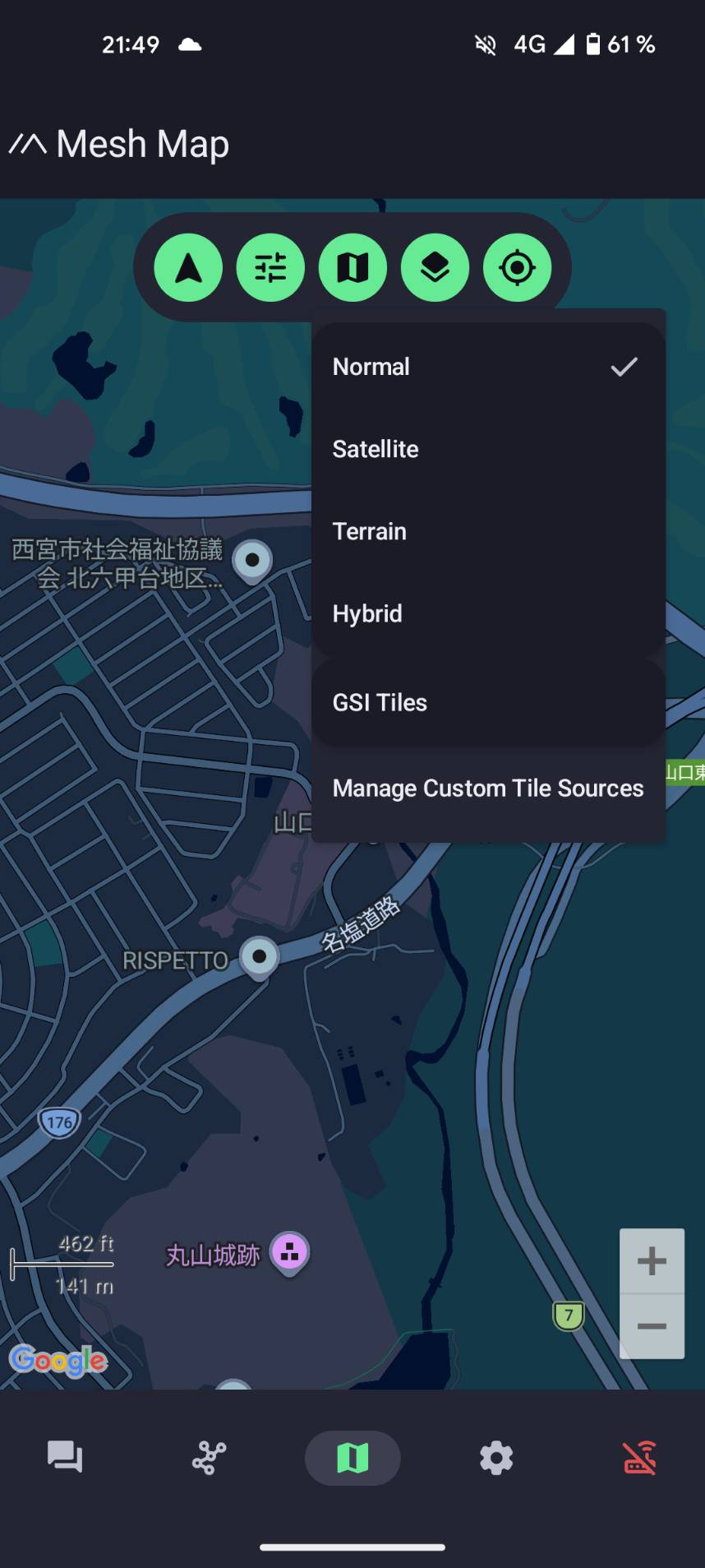
The map layer menu
Open the map, then tap the layers button. Alongside the built-in Normal, Satellite, Terrain, and Hybrid options, there is an entry for adding your own: Manage Custom Tile Sources.
Adding a layer
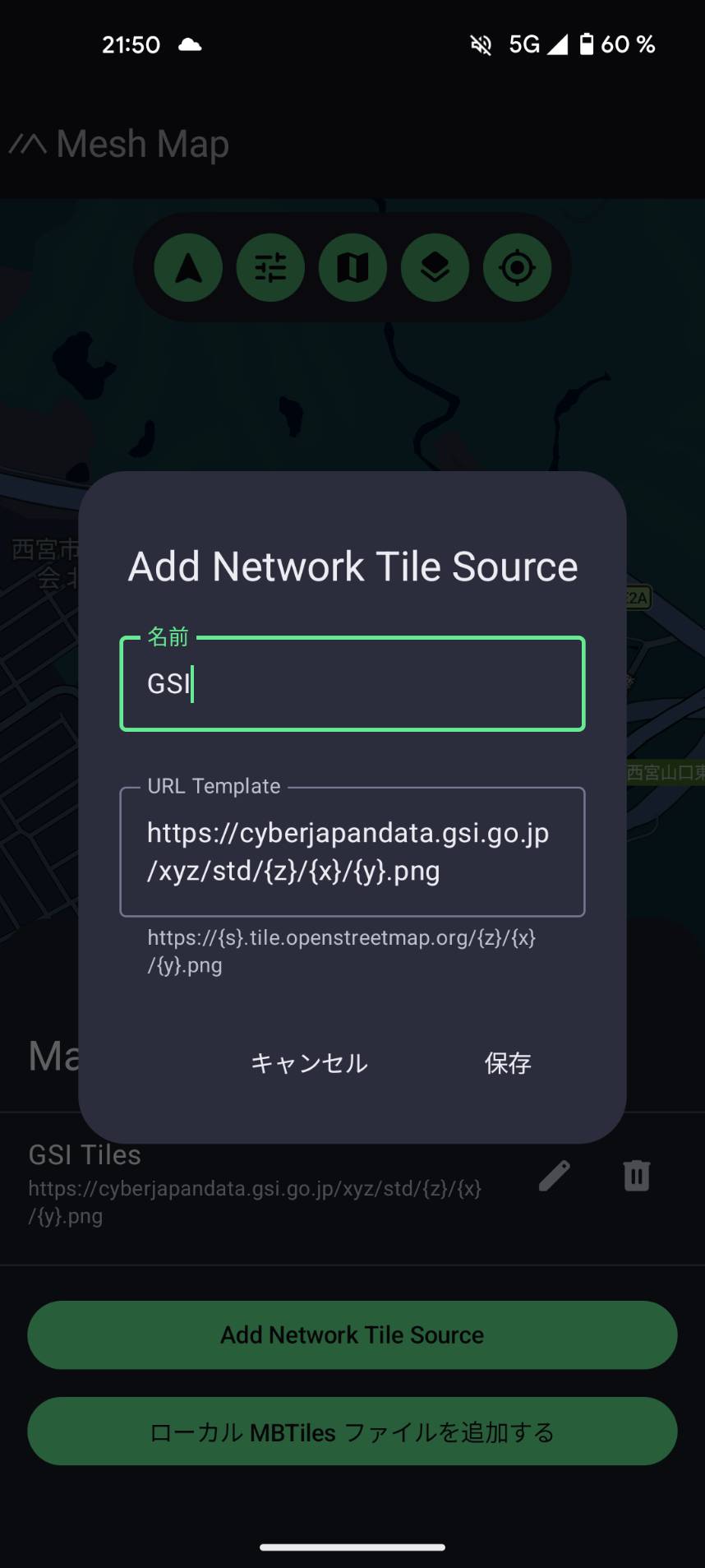
Choose Add Network Tile Source, give it a name, and paste in a tile address. A tile address (sometimes called an "XYZ URL") is just a web link with {z}/{x}/{y} in it, which the app fills in automatically as you pan and zoom.
For Japan, the single best starting point is the standard map from the GSI (the Geospatial Information Authority of Japan, 国土地理院):
https://cyberjapandata.gsi.go.jp/xyz/std/{z}/{x}/{y}.png
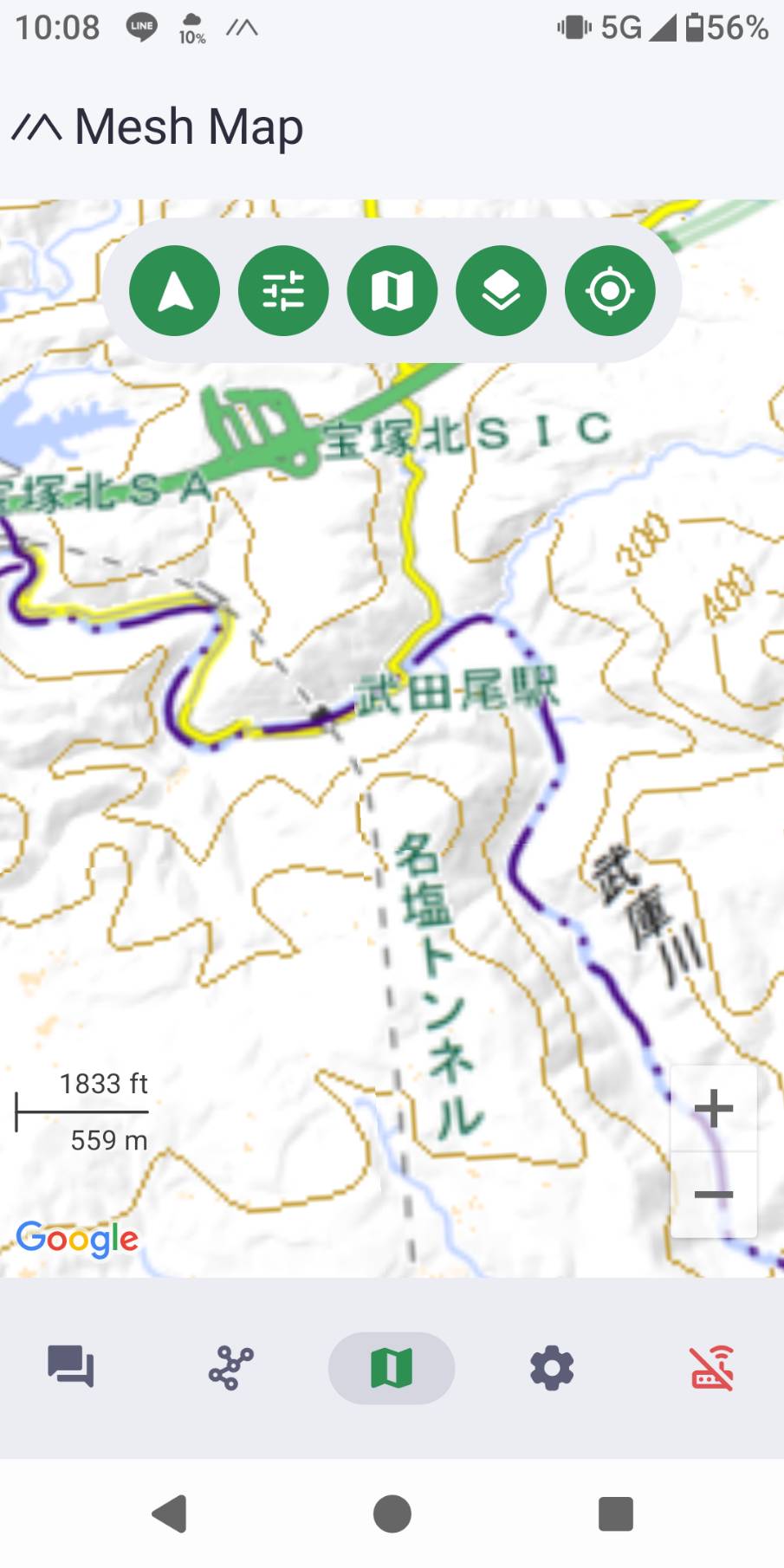
Save it, then pick your new layer from the menu. You now have a proper topographic map: contour lines, peaks, rivers, trails, and place names.
The custom-tile screens are under very active development, and the Japanese translation is not finished yet, so you will see a mix of English and Japanese labels (for example 名前 for "name" and 保存 for "save"). Do not let that throw you. The fields work the same in either language.
Good free layers for the outdoors
These are all free to use with attribution. The full list, with copy-and-paste addresses and the exact attribution text, is on our custom map layers guide.
For Japan, from the GSI (地理院地図):
- Standard map (標準地図) is the all-round topographic map, with contour lines and trails. The best default.
- Pale map (淡色地図) has the same detail in muted colours, so your team's positions and your track stand out on top.
- Aerial photo (写真) lets you check the actual ground: forest, clearings, riverbeds, snow.
- Hillshade (陰影起伏図) and slope map (傾斜量図) show the shape and steepness of the terrain, which is useful for planning a route or spotting dangerous ground.
For anywhere in the world:
- OpenTopoMap is the best free global topographic map, with contour lines and hillshading. A great choice when you travel outside Japan.
If GSI and OpenStreetMap sound familiar, that is because they also power many web maps, including parts of Karida Cloud. They are trusted, open, and well suited to the outdoors.
Full how-to
Step-by-step instructions, the complete list of layer addresses, and the attribution text are all in the custom map layers guide in our off-grid documentation.