Your First Day with a Meshtastic Device
You just received your first Meshtastic device. This guide walks you through everything from opening the box to sending your first message. No technical background required.
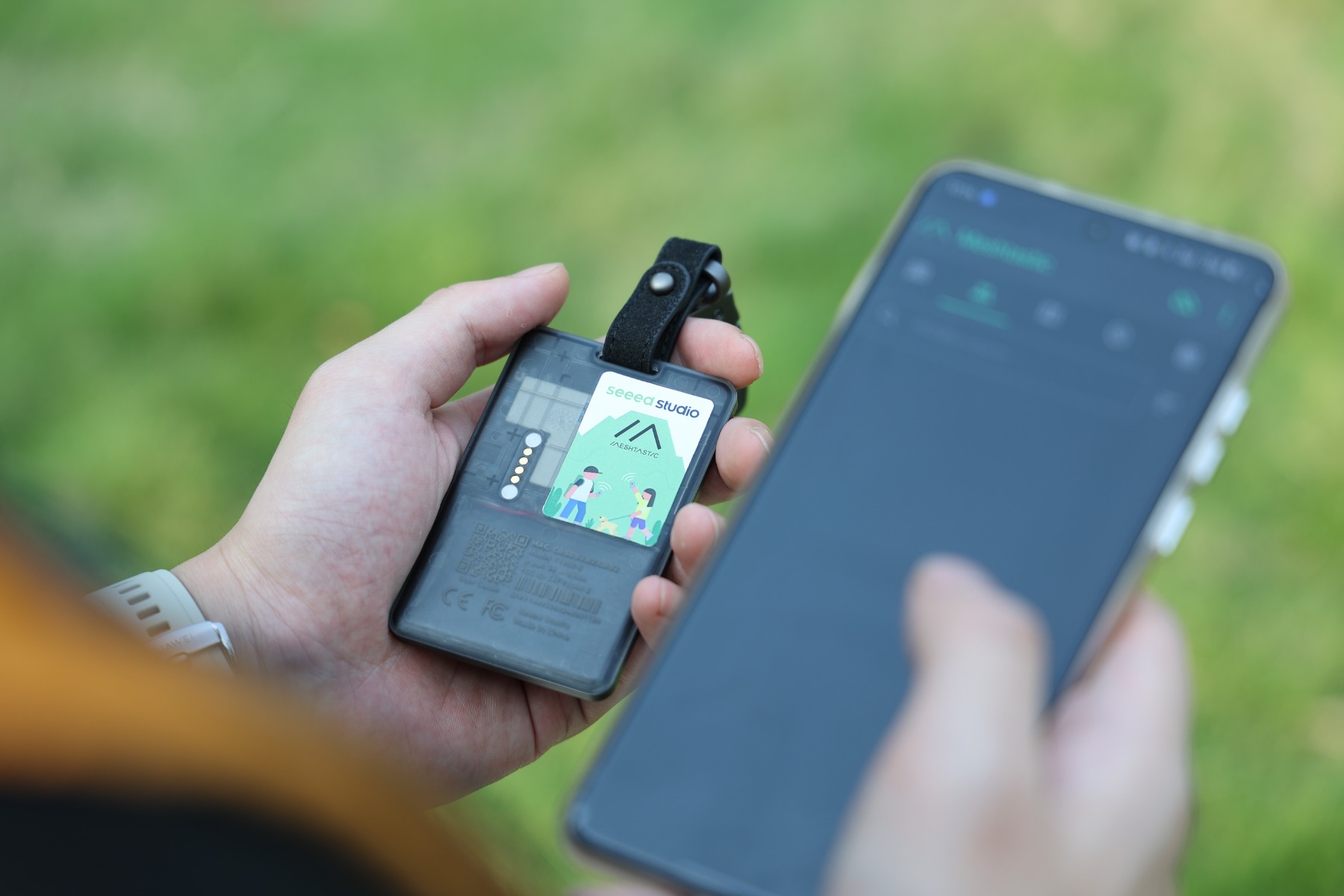
We will use the SenseCAP T1000-E as the example here, since that is the device we currently sell. The general steps apply to most Meshtastic devices.
Step 1: Charge the device
Attach the magnetic charging cable to the back of the device and connect it to any USB charger. A full charge takes about two hours. The device will power on automatically when connected to the charger.
You can start setting things up while it charges. Just keep the cable connected.
Step 2: Install the Meshtastic app
Download the Meshtastic app on your phone:
- Android: Search for "Meshtastic" in the Google Play Store
- iPhone: Search for "Meshtastic" in the App Store
The app is free. It is how you send messages, view the map, and change device settings.
Step 3: Turn on the device
If the device is not already on from charging, press the button on the front of the T1000-E to power it on.
The first time you power on, the device starts broadcasting on its default settings.
Before using the device outdoors, confirm that the frequency region is set to Japan (JP) in the app under Settings > LoRa > Region. Using the wrong region setting is illegal and may interfere with other radio services. If you need to change it, our first setup guide walks you through it.
Step 4: Pair with your phone
- Open the Meshtastic app on your phone.
- Tap the + button (or "Add device") to start scanning.
- Your device should appear in the list within a few seconds.
- Tap the device name to connect.
- The app may ask you to confirm the pairing. Accept it.
Once connected, the app shows your device status: battery level, GPS coordinates, and the number of other nodes in range.
Step 5: Name your device
Your device has a random default name. Change it to something your team recognizes.
- In the app, go to Settings (gear icon).
- Find the User section.
- Change the Long Name to something clear, like "Tanaka" or "Team-A-Lead".
- The Short Name is a 4-character identifier that appears on other people's screens. Pick something simple, like "TNKA".
- Save the changes.
Good naming matters. When your group has five devices on a hillside, "Meshtastic_a3f9" tells you nothing. "Tanaka" or "Group-A-Lead" tells you everything.
Step 6: Share your channel with the group
For devices to exchange messages and GPS positions, they all need to be on the same channel with the same encryption key. The easiest way to do this is with a QR code.
- In the app, open the Channels view.
- Tap the QR code icon on your primary channel.
- The others in your group scan the QR code with their Meshtastic app.
This copies your channel settings and secret key to their device. Once everyone has scanned the code, all devices are configured identically and can communicate with each other.
Step 7: Send your first message
- In the app, go to the Messages tab.
- Select the default channel (usually labeled "LongFast" or "Primary").
- Type a short message: "Testing, this is [your name]."
- Tap send.
If another Meshtastic device is in range, they will receive your message within a few seconds. If no one is nearby, the message still goes out. You can test with a friend or a second device.
Step 8: Check the map
Switch to the Map tab in the app. If your device has GPS lock (it may take a minute outdoors), you will see your position marked on the map. Any other nodes in range appear as separate markers.
This is how teams track each other in the field. No mobile signal needed.
What to do next
Before your first real outing, run through this short preparation list:
- Charge all devices the night before.
- Name every device so your team knows who is who.
- Agree on a check-in interval. Every 30 minutes is a reasonable starting point.
- Do a range test near your planned area. Walk apart and confirm messages still arrive.
- Carry backup communication. Meshtastic is a coordination layer, not a replacement for your phone or emergency equipment.
The most important thing on your first day is to get comfortable with the basics: sending a message, reading the map, knowing your battery level. Everything else builds on that.
Go outside and send a message.